

Get instant Telegram notifications whenever someone submits your website’s contact form. This tutorial shows you how to build a contact form that sends submissions directly to your Telegram account using the Telegram API.
The contact form on the contact page of this website has also been created using this tutorial. You can visit the page, fill the form, and it would show you the success message which means my telegram bot have received your submission instantly.
Table of Contents
What You’ll Build
A simple contact form with three fields (Name, Email, Message) that sends form data to your Telegram account instantly when submitted. No database required, and it works on any website that supports PHP.
Why Create a Telegram API Contact Form?
You might be wondering: “Why should I use Telegram when email contact forms work fine?” Here are the key benefits that make Telegram contact forms a better choice for many websites.
1. Instant Mobile Notifications
Email: Messages sit in your inbox until you check. Spam filters might hide important inquiries. You could miss urgent requests for hours.
Telegram: Push notifications arrive on your phone instantly, like a text message. A freelancer can respond to a project inquiry in minutes instead of hours, often making the difference in landing a client.
2. No Spam or Delivery Issues
Email: Contact form emails often land in spam folders. You need to configure SPF, DKIM, and DMARC records – technical setup that’s confusing for beginners.
Telegram: 100% delivery guaranteed. Messages go directly to your chat with no spam filters blocking them.
3. Zero Configuration Needed
Email: Configure SMTP settings, set up authentication, deal with delivery failures, worry about sending limits, and hope your host’s mail server isn’t blacklisted.
Telegram: Just two pieces of information – bot token and chat ID. Copy, paste, done. Works on any hosting provider.
4. Better Organization
Email: Form submissions mix with regular emails, newsletters, and notifications. You need folders and filters to stay organized.
Telegram: All submissions go to one dedicated bot chat. Instant search, easy pinning, and you can even create a group chat so your whole team gets notifications.
5. Works Everywhere, Always Free
Email: Doesn’t work well on cheap hosting, localhost, or hosts with blocked ports. Services like SendGrid charge after free tiers ($10-50/month for reliability).
Telegram: Uses simple HTTPS requests. Works on any hosting, localhost, even free hosting. Completely free forever with no daily limits or premium tiers.
Prerequisites
- A website with PHP support (WordPress, custom PHP site, etc.)
- A Telegram account
- Basic knowlege of PHP, HTML, CSS
- 10-15 minutes of your time
Step 1: Create Your Telegram Bot
First, you need to create a bot that will send you the form submissions.
1.1 Find BotFather on Telegram
Open Telegram and search for @BotFather in the search bar.
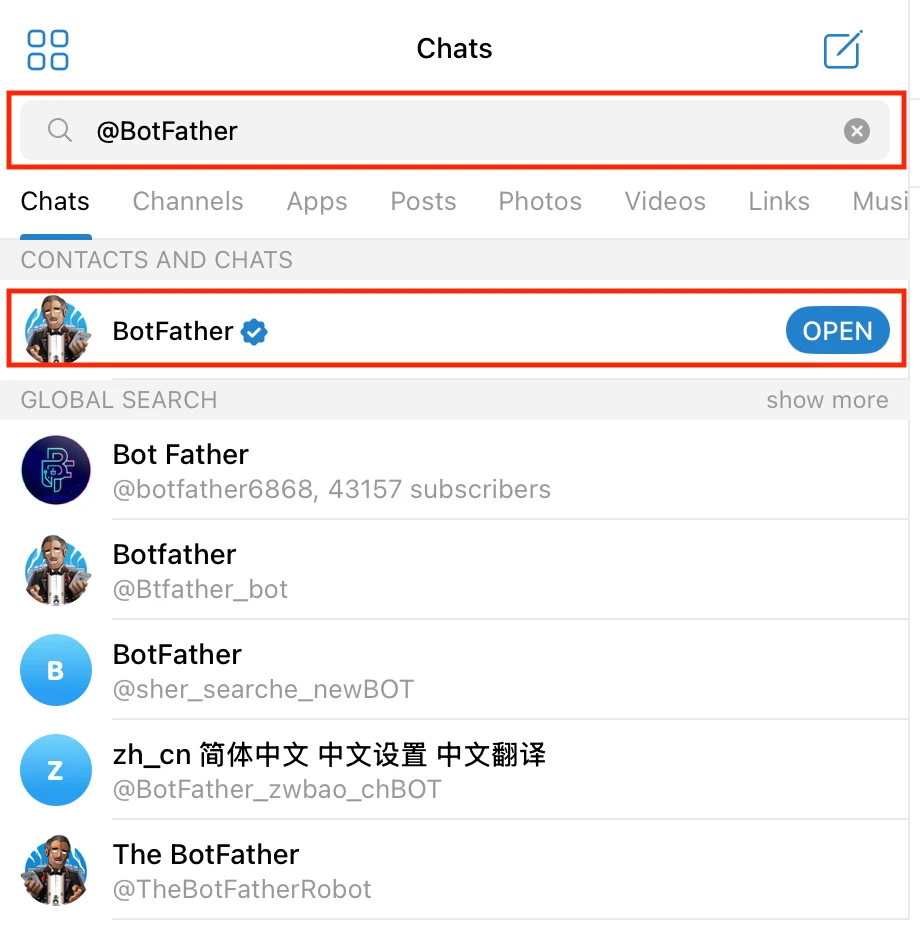
Click on the verified BotFather account (it has a blue checkmark).
1.2 Create a New Bot
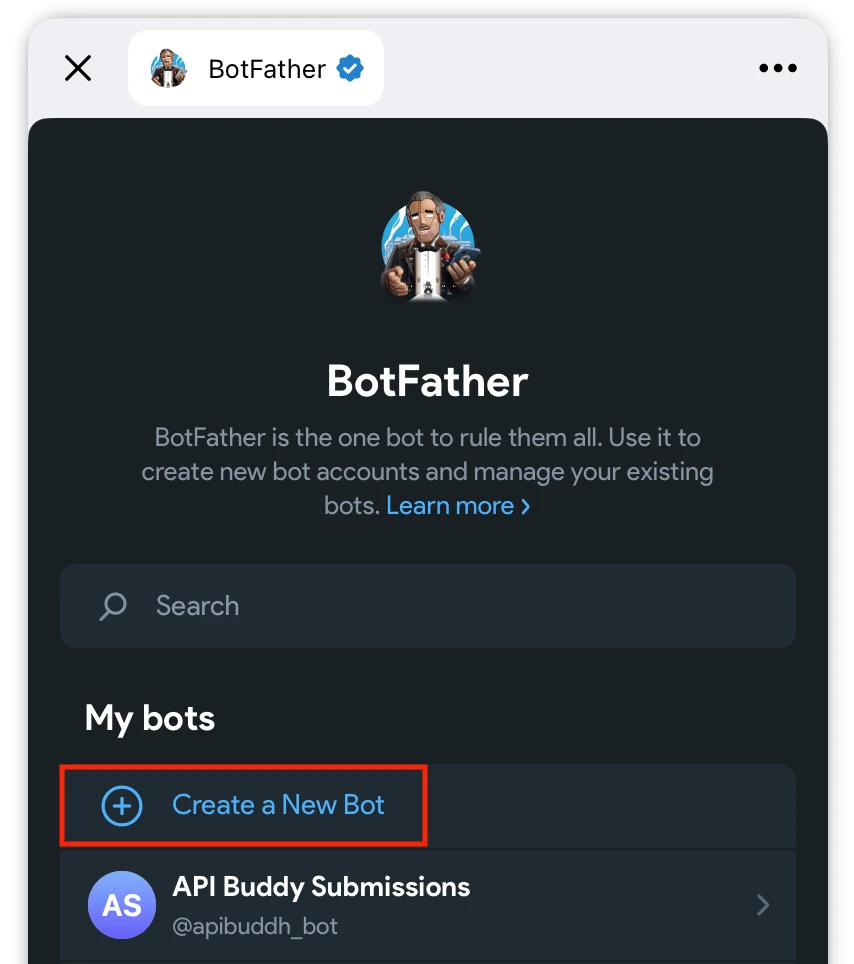
Click the “OPEN” button or send /start to BotFather. Then click “Create a New Bot” or send the /newbot command.
1.3 Name Your Bot
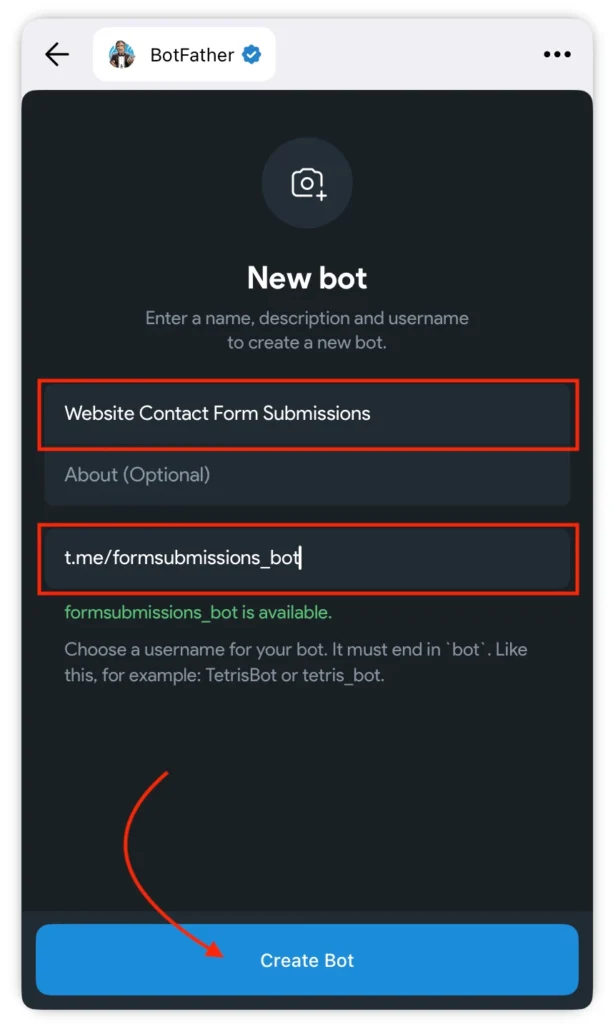
BotFather will ask you two questions:
- Bot Name: Give your bot a friendly name (e.g., “Website Contact Form Submissions”)
- Username: Create a unique username ending in
_bot(e.g.,formsubmissions_bot)
1.4 Copy Your Bot Token
After creating the bot, BotFather will give you an API Token. It looks like this:
8550725605:AAFrB9S3gzpXqy7hjVksnunER98Twbiyb64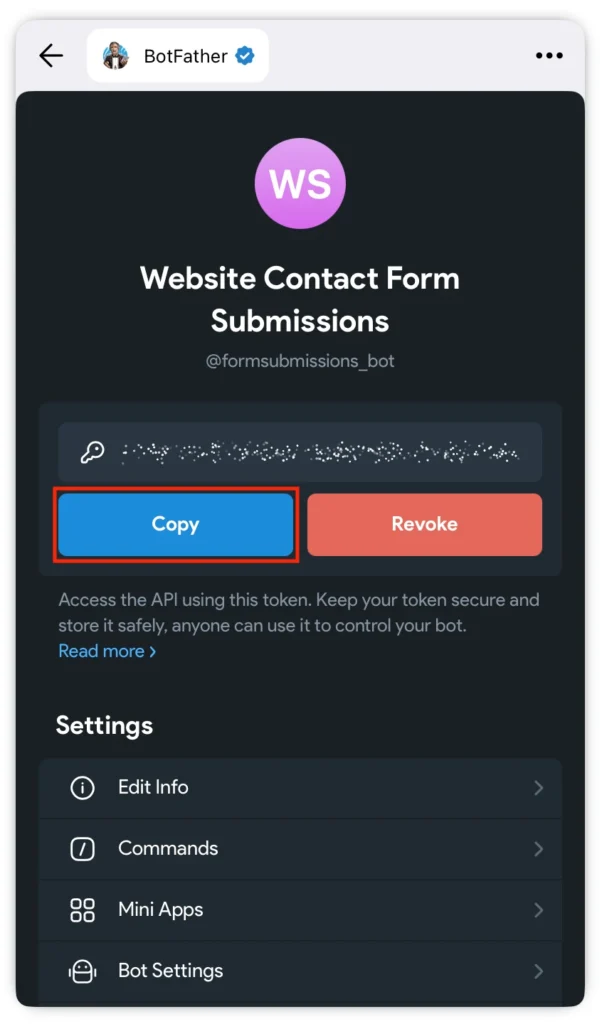
Click “Copy” and save this token somewhere safe. You’ll need it in your code.
Important: Keep this token secret! Anyone with this token can control your bot.
Also Read: API Basics Explained: Endpoints, Requests, Responses & API Keys (With Examples)
Step 2: Get Your Chat ID
The Chat ID tells your bot where to send messages. Here’s how to find it:
2.1 Start a Chat with Your Bot
Find your bot in Telegram by searching for the username you created (e.g., @formsubmissions_bot). Click on it and press the “START” button at the bottom.
2.2 Send a Test Message
Send any message to your bot, like /start or “hello”.
2.3 Get Your Chat ID
Open this URL in your browser, replacing YOUR_BOT_TOKEN with the token you copied earlier:
https://api.telegram.org/botYOUR_BOT_TOKEN/getUpdatesFor example:
https://api.telegram.org/bot8550725605:AAFrB9S3gzpXqy7hjVksnunER98Twbiyb64/getUpdates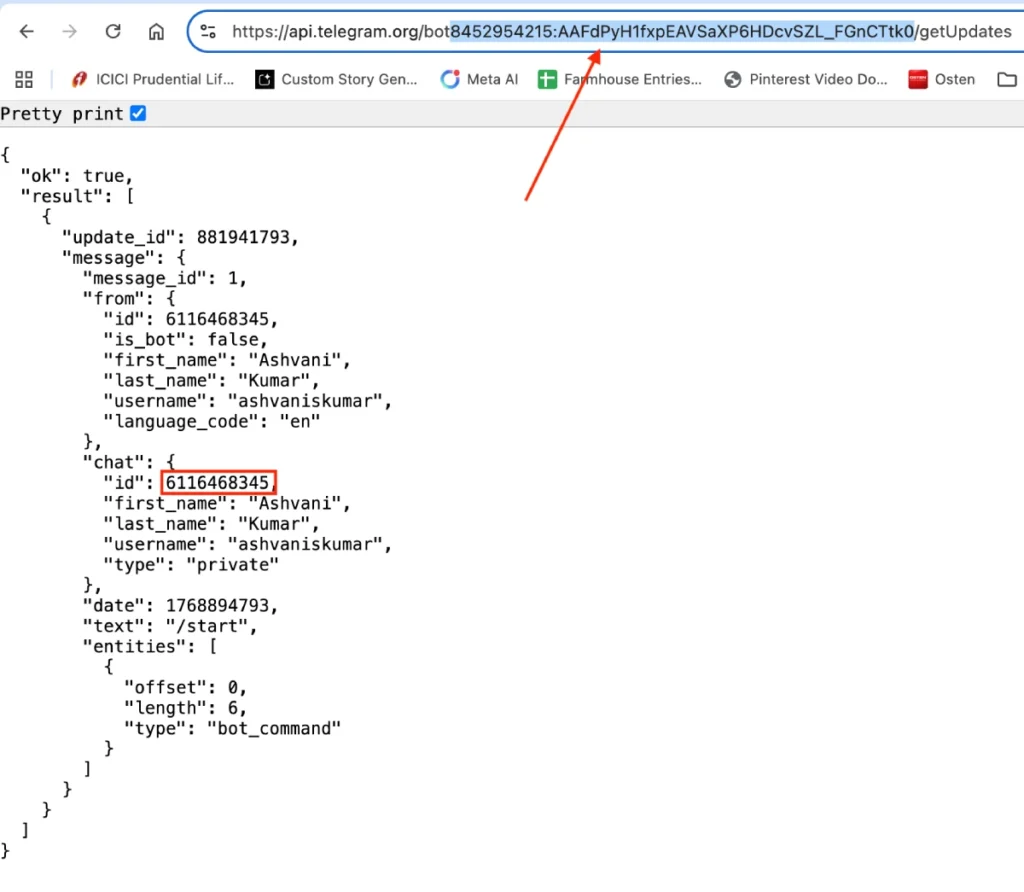
Look for the "chat":{"id": section. The number next to it is your Chat ID (e.g., 6116468345). Copy this number.
Step 3: Understanding the Code
The complete code consists of three main parts:
- Configuration: Where you add your bot token and chat ID
- Server-side Logic (PHP): Handles form submission and sends to Telegram
- Client-side Code (HTML/CSS/JavaScript): The contact form interface
Let me break down each part:
3.1 Configuration Section
define('TP_BOT_TOKEN', 'YOUR_BOT_TOKEN_HERE');
define('TP_CHAT_ID', 'YOUR_CHAT_ID_HERE');
What this does: Stores your bot credentials as constants that PHP can use throughout the code.
What you need to do: Replace YOUR_BOT_TOKEN_HERE with your actual bot token and YOUR_CHAT_ID_HERE with your chat ID.
3.2 PHP AJAX Handler
add_action('wp_ajax_tp_send_message', 'tp_handle_form_submission');
add_action('wp_ajax_nopriv_tp_send_message', 'tp_handle_form_submission');
What this does: These WordPress hooks allow both logged-in users (wp_ajax_) and visitors (wp_ajax_nopriv_) to submit the form.
For non-WordPress sites: Skip these hooks and create a separate PHP file that handles the tp_handle_form_submission function directly.
3.3 Form Submission Function
function tp_handle_form_submission() {
    check_ajax_referer('tp_secure_action', 'tp_nonce');

    $name    = sanitize_text_field($_POST['name'] ?? '');
    $email   = sanitize_email($_POST['email'] ?? '');
    $message = sanitize_textarea_field($_POST['message'] ?? '');
What this does:
check_ajax_referer: Prevents spam and unauthorized submissionssanitize_text_fieldandsanitize_email: Cleans the user input to prevent security issues$_POST['name']: Gets the data submitted from the form
3.4 Sending to Telegram
$text = "🚀 *New Form Submission*\n\n*Name:* $name\n*Email:* $email\n*Message:* $message";

$response = wp_remote_post("https://api.telegram.org/bot" . TP_BOT_TOKEN . "/sendMessage", [
    'headers' => ['Content-Type' => 'application/json'],
    'body'    => json_encode([
        'chat_id' => TP_CHAT_ID,
        'text' => $text,
        'parse_mode' => 'Markdown'
    ]),
    'timeout' => 10
]);
What this does:
- Creates a formatted message with the form data
- Sends a POST request to Telegram’s
sendMessageAPI endpoint
3.5 Form HTML Structure
<div class="tp-form-container">
    <form id="tpForm">
        <div class="tp-group">
            <label>Name</label>
            <input type="text" name="name" required>
        </div>
        <!-- More fields... -->
    </form>
</div>
What this does: Creates a simple form with proper labels and required validation.
3.6 JavaScript Form Submission
const fd = new FormData(f);
fd.append('action', 'tp_send_message');
fd.append('tp_nonce', '<?php echo wp_create_nonce("tp_secure_action"); ?>');

const resp = await fetch('<?php echo admin_url('admin-ajax.php'); ?>', {
    method: 'POST',
    body: fd
});
What this does:
FormData: Packages all form fieldsfetch: Sends data to the server without refreshing the pageasync/await: Modern JavaScript for handling responses- Shows success/error messages based on the response
Step 4: Complete Telegram API Contact Form Code for WordPress
If you’re using WordPress, create a new plugin file:
- Go to
wp-content/plugins/folder - Create a new folder called
telegram-contact-form - Inside it, create a file called
telegram-contact-form.php - Paste this code:
<?php
/**
 * Plugin Name: Telegram Contact Form
 * Description: Send contact form submissions to Telegram
 * Version: 1.0
 * Author: Your Name
 */

if (!defined('ABSPATH')) exit;

// Add your credentials here
define('TP_BOT_TOKEN', 'YOUR_BOT_TOKEN_HERE');
define('TP_CHAT_ID', 'YOUR_CHAT_ID_HERE');

// Handle form submission
add_action('wp_ajax_tp_send_message', 'tp_handle_form_submission');
add_action('wp_ajax_nopriv_tp_send_message', 'tp_handle_form_submission');

function tp_handle_form_submission() {
    check_ajax_referer('tp_secure_action', 'tp_nonce');

    $name    = sanitize_text_field($_POST['name'] ?? '');
    $email   = sanitize_email($_POST['email'] ?? '');
    $message = sanitize_textarea_field($_POST['message'] ?? '');

    if ($name && $email && $message) {
        $text = "🚀 *New Form Submission*\n\n*Name:* $name\n*Email:* $email\n*Message:* $message";

        $response = wp_remote_post("https://api.telegram.org/bot" . TP_BOT_TOKEN . "/sendMessage", [
            'headers' => ['Content-Type' => 'application/json'],
            'body'    => json_encode([
                'chat_id' => TP_CHAT_ID,
                'text' => $text,
                'parse_mode' => 'Markdown'
            ]),
            'timeout' => 10
        ]);

        if (is_wp_error($response)) {
            wp_send_json_error(['message' => 'Server error. Please try again.']);
        }

        $http_code = wp_remote_retrieve_response_code($response);
        if ($http_code === 200) {
            wp_send_json_success(['message' => 'Message sent successfully!']);
        } else {
            wp_send_json_error(['message' => 'Failed to send. Please try again.']);
        }
    }
    wp_die();
}

// Create shortcode
add_shortcode('telegram_form', 'tp_render_form');

function tp_render_form() {
    ob_start();
    ?>
    <style>
        .tp-form-container {
            max-width: 500px;
            margin: 20px 0;
        }
        .tp-group {
            margin-bottom: 15px;
        }
        .tp-group label {
            display: block;
            font-weight: 600;
            margin-bottom: 5px;
            color: #333;
        }
        .tp-form-container input,
        .tp-form-container textarea {
            width: 100%;
            padding: 10px;
            border: 1px solid #ddd;
            border-radius: 4px;
            font-size: 14px;
            box-sizing: border-box;
        }
        .tp-form-container input:focus,
        .tp-form-container textarea:focus {
            outline: none;
            border-color: #4f46e5;
            box-shadow: 0 0 0 3px rgba(79, 70, 229, 0.1);
        }
        .tp-submit-btn {
            background: #4f46e5;
            color: white;
            border: none;
            padding: 12px 24px;
            border-radius: 4px;
            font-weight: 600;
            cursor: pointer;
            width: 100%;
        }
        .tp-submit-btn:hover {
            background: #4338ca;
        }
        .tp-submit-btn:disabled {
            background: #94a3b8;
            cursor: not-allowed;
        }
        #tp-res {
            margin-top: 15px;
            padding: 12px;
            border-radius: 4px;
            display: none;
            text-align: center;
        }
        .tp-success {
            background: #f0fdf4;
            color: #166534;
            border: 1px solid #86efac;
        }
        .tp-error {
            background: #fef2f2;
            color: #991b1b;
            border: 1px solid #fecaca;
        }
    </style>

    <div class="tp-form-container">
        <form id="tpForm">
            <div class="tp-group">
                <label>Name</label>
                <input type="text" name="name" required placeholder="Your full name">
            </div>
            <div class="tp-group">
                <label>Email</label>
                <input type="email" name="email" required placeholder="[email protected]">
            </div>
            <div class="tp-group">
                <label>Message</label>
                <textarea name="message" rows="5" required placeholder="How can we help you?"></textarea>
            </div>
            <button type="submit" id="tpSub" class="tp-submit-btn">Send Message</button>
            <div id="tp-res"></div>
        </form>
    </div>

    <script>
    document.addEventListener('DOMContentLoaded', () => {
        const form = document.getElementById('tpForm');
        const result = document.getElementById('tp-res');
        const button = document.getElementById('tpSub');

        form.addEventListener('submit', async (e) => {
            e.preventDefault();
            button.disabled = true;
            button.innerText = 'Sending...';
            result.style.display = 'none';

            const formData = new FormData(form);
            formData.append('action', 'tp_send_message');
            formData.append('tp_nonce', '<?php echo wp_create_nonce("tp_secure_action"); ?>');

            try {
                const response = await fetch('<?php echo admin_url('admin-ajax.php'); ?>', {
                    method: 'POST',
                    body: formData
                });
                const json = await response.json();

                result.innerText = json.data.message;
                result.className = json.success ? 'tp-success' : 'tp-error';
                result.style.display = 'block';

                if(json.success) form.reset();
            } catch (err) {
                result.innerText = 'Network error. Please try again.';
                result.className = 'tp-error';
                result.style.display = 'block';
            } finally {
                button.disabled = false;
                button.innerText = 'Send Message';
            }
        });
    });
    </script>
    <?php
    return ob_get_clean();
}
Replace these values:
- Line 10: Replace
YOUR_BOT_TOKEN_HEREwith your bot token - Line 11: Replace
YOUR_CHAT_ID_HEREwith your chat ID
Step 5: Activate and Use
For WordPress:
- Go to your WordPress admin panel
- Navigate to Plugins → Installed Plugins
- Find “Telegram Contact Form” and click “Activate”
- Add the shortcode
[telegram_form]to any page or post
[Image Prompt: Screenshot of WordPress page editor with [telegram_form] shortcode added] Alt Tag: “Add telegram_form shortcode to WordPress page”
Step 6: Complete Telegram Integrated Contact Form For Non-WordPress Sites
Create two files in your website’s root directory:
File 1: telegram-handler.php
<?php
// Configuration
define('TP_BOT_TOKEN', 'YOUR_BOT_TOKEN_HERE');
define('TP_CHAT_ID', 'YOUR_CHAT_ID_HERE');

// Only accept POST requests
if ($_SERVER['REQUEST_METHOD'] !== 'POST') {
    http_response_code(405);
    echo json_encode(['success' => false, 'message' => 'Method not allowed']);
    exit;
}

// Get and sanitize form data
$name = htmlspecialchars(trim($_POST['name'] ?? ''), ENT_QUOTES, 'UTF-8');
$email = filter_var($_POST['email'] ?? '', FILTER_SANITIZE_EMAIL);
$message = htmlspecialchars(trim($_POST['message'] ?? ''), ENT_QUOTES, 'UTF-8');

// Validate data
if (empty($name) || empty($email) || empty($message)) {
    echo json_encode(['success' => false, 'message' => 'All fields are required']);
    exit;
}

if (!filter_var($email, FILTER_VALIDATE_EMAIL)) {
    echo json_encode(['success' => false, 'message' => 'Invalid email address']);
    exit;
}

// Prepare message for Telegram
$text = "🚀 *New Form Submission*\n\n";
$text .= "*Name:* $name\n";
$text .= "*Email:* $email\n";
$text .= "*Message:* $message";

// Send to Telegram
$url = "https://api.telegram.org/bot" . TP_BOT_TOKEN . "/sendMessage";
$data = [
    'chat_id' => TP_CHAT_ID,
    'text' => $text,
    'parse_mode' => 'Markdown'
];

$options = [
    'http' => [
        'header'  => "Content-type: application/json\r\n",
        'method'  => 'POST',
        'content' => json_encode($data),
        'timeout' => 10
    ]
];

$context = stream_context_create($options);
$result = @file_get_contents($url, false, $context);

if ($result === false) {
    echo json_encode(['success' => false, 'message' => 'Failed to send message']);
} else {
    echo json_encode(['success' => true, 'message' => 'Message sent successfully!']);
}
File 2: contact.html
<!DOCTYPE html>
<html lang="en">
<head>
    <meta charset="UTF-8">
    <meta name="viewport" content="width=device-width, initial-scale=1.0">
    <title>Contact Form</title>
    <style>
        * { box-sizing: border-box; }
        body {
            font-family: -apple-system, BlinkMacSystemFont, "Segoe UI", Roboto, sans-serif;
            max-width: 600px;
            margin: 50px auto;
            padding: 20px;
            background: #f5f5f5;
        }
        .form-container {
            background: white;
            padding: 30px;
            border-radius: 8px;
            box-shadow: 0 2px 10px rgba(0,0,0,0.1);
        }
        h2 { margin-top: 0; color: #333; }
        .form-group { margin-bottom: 20px; }
        label {
            display: block;
            margin-bottom: 5px;
            font-weight: 600;
            color: #555;
        }
        input, textarea {
            width: 100%;
            padding: 12px;
            border: 1px solid #ddd;
            border-radius: 4px;
            font-size: 14px;
        }
        input:focus, textarea:focus {
            outline: none;
            border-color: #4f46e5;
            box-shadow: 0 0 0 3px rgba(79, 70, 229, 0.1);
        }
        button {
            background: #4f46e5;
            color: white;
            border: none;
            padding: 12px 24px;
            border-radius: 4px;
            font-size: 16px;
            font-weight: 600;
            cursor: pointer;
            width: 100%;
        }
        button:hover { background: #4338ca; }
        button:disabled {
            background: #94a3b8;
            cursor: not-allowed;
        }
        #result {
            margin-top: 15px;
            padding: 12px;
            border-radius: 4px;
            display: none;
            text-align: center;
        }
        .success {
            background: #f0fdf4;
            color: #166534;
            border: 1px solid #86efac;
        }
        .error {
            background: #fef2f2;
            color: #991b1b;
            border: 1px solid #fecaca;
        }
    </style>
</head>
<body>
    <div class="form-container">
        <h2>Contact Us</h2>
        <form id="contactForm">
            <div class="form-group">
                <label for="name">Name</label>
                <input type="text" id="name" name="name" required placeholder="Your full name">
            </div>
            <div class="form-group">
                <label for="email">Email</label>
                <input type="email" id="email" name="email" required placeholder="[email protected]">
            </div>
            <div class="form-group">
                <label for="message">Message</label>
                <textarea id="message" name="message" rows="5" required placeholder="How can we help you?"></textarea>
            </div>
            <button type="submit" id="submitBtn">Send Message</button>
            <div id="result"></div>
        </form>
    </div>

    <script>
        document.getElementById('contactForm').addEventListener('submit', async (e) => {
            e.preventDefault();

            const button = document.getElementById('submitBtn');
            const result = document.getElementById('result');
            const form = e.target;

            // Disable button
            button.disabled = true;
            button.textContent = 'Sending...';
            result.style.display = 'none';

            // Prepare form data
            const formData = new FormData(form);

            try {
                const response = await fetch('telegram-handler.php', {
                    method: 'POST',
                    body: formData
                });

                const data = await response.json();

                result.textContent = data.message;
                result.className = data.success ? 'success' : 'error';
                result.style.display = 'block';

                if (data.success) {
                    form.reset();
                }
            } catch (error) {
                result.textContent = 'Network error. Please try again.';
                result.className = 'error';
                result.style.display = 'block';
            } finally {
                button.disabled = false;
                button.textContent = 'Send Message';
            }
        });
    </script>
</body>
</html>
Step 7: Test Your Form
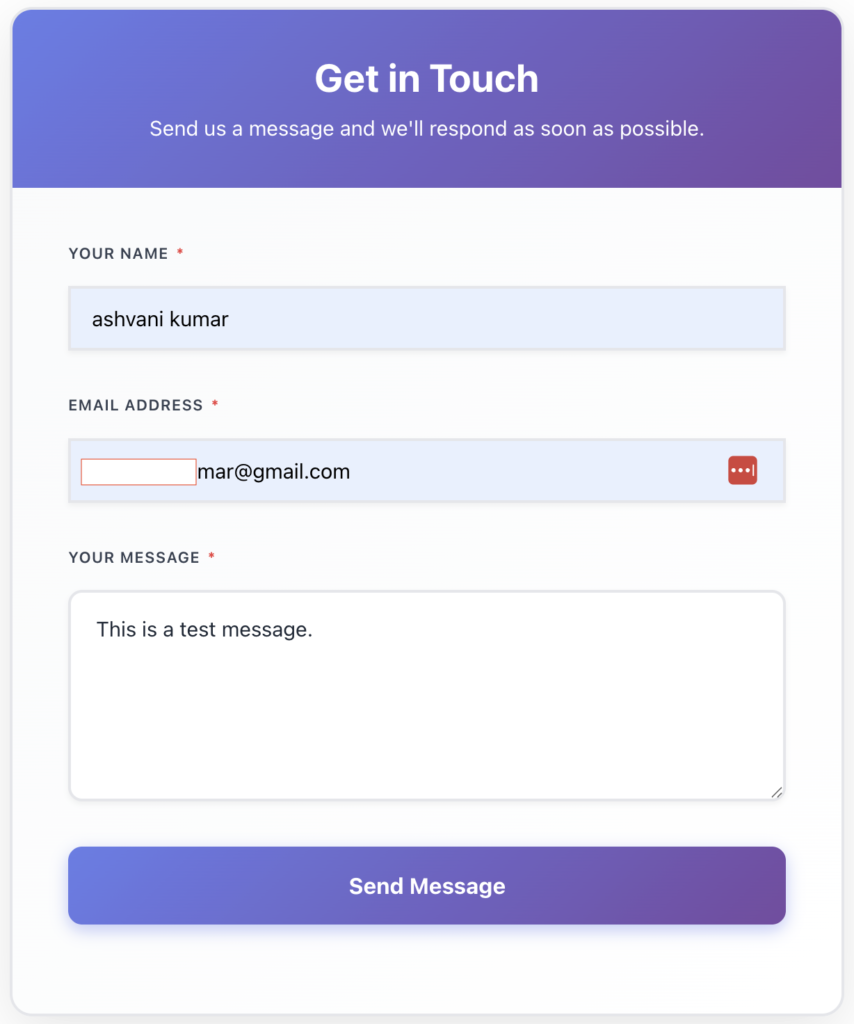
- Open the page with your contact form
- Fill in all three fields
- Click “Send Message”
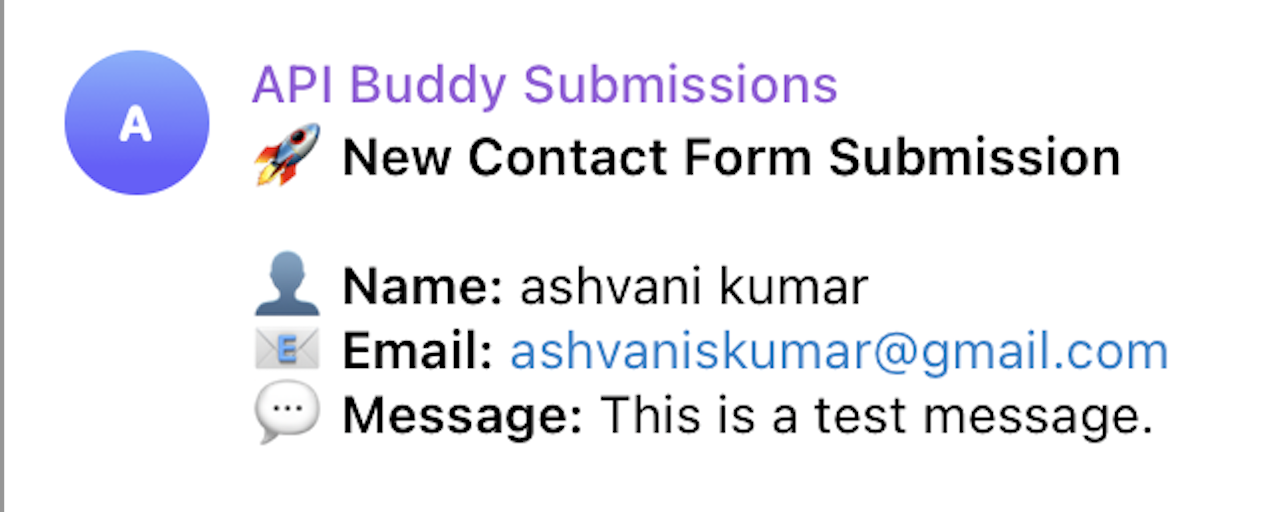
- Check your Telegram app
You should receive a formatted message as shown in the screenshot below:
Troubleshooting Common Issues
“Telegram API error“
Solution: Double-check your bot token. Make sure you copied it correctly without extra spaces.
“Server error. Please try again”
Solution: Your server might be blocking outgoing requests. Contact your hosting provider and ask them to allow connections to api.telegram.org.
Form submits but no Telegram message
Solution:
- Verify your Chat ID is correct
- Make sure you pressed “START” on your bot
- Check if your bot token is active (visit the getUpdates URL from Step 2)
“Network error”
Solution: This is usually a JavaScript issue. Open your browser’s console (F12) to see detailed error messages.
If you still face issues then you can refer to the official Telegram API documentaion.
Conclusion
You now have a working contact form that sends submissions directly to Telegram. This is perfect for:
- Small business websites
- Portfolio sites
- Landing pages
- Any site where you want instant notifications
The best part? No database setup, no email configuration, and you get notifications instantly on your phone.
![How to Create Claude WordPress MCP Server [100% Working]](https://apibuddy.net/wp-content/uploads/2026/01/How-to-Create-Claude-WordPress-MCP-Server-10-Steps.webp)