

You’re excited to start building with a new API. You navigate to the developer console, click that shiny “Generate API Key” button, and… boom….“Failed to generate API key: permission denied. Please try again.”
I’ve been there more times than I’d like to admit over my 12+ years working with APIs, and trust me, this error is more common than you think. The frustrating part? That vague “please try again” suggestion rarely works on its own.
Table of Contents
Today, I’m walking you through exactly why this happens and, more importantly, how to fix it, whether you’re working with Google AI Studio, OpenAI, AWS, or any other platform.
Understanding the “Permission Denied” Error
Before we jump into solutions, let’s talk about what’s actually happening when you see this error.
When you request an API key, the platform runs several permission checks in the background. These include verifying your account status, checking your organization role, validating billing information, and confirming compliance with terms of service. If any of these checks fail, you get the dreaded permission denied message.
Think of it like trying to check out a library book. You need a valid library card (authenticated account), your account needs to be in good standing (no outstanding fines), and you need permission to borrow that specific type of material (proper access roles). Miss any of these, and you’re walking out empty-handed.
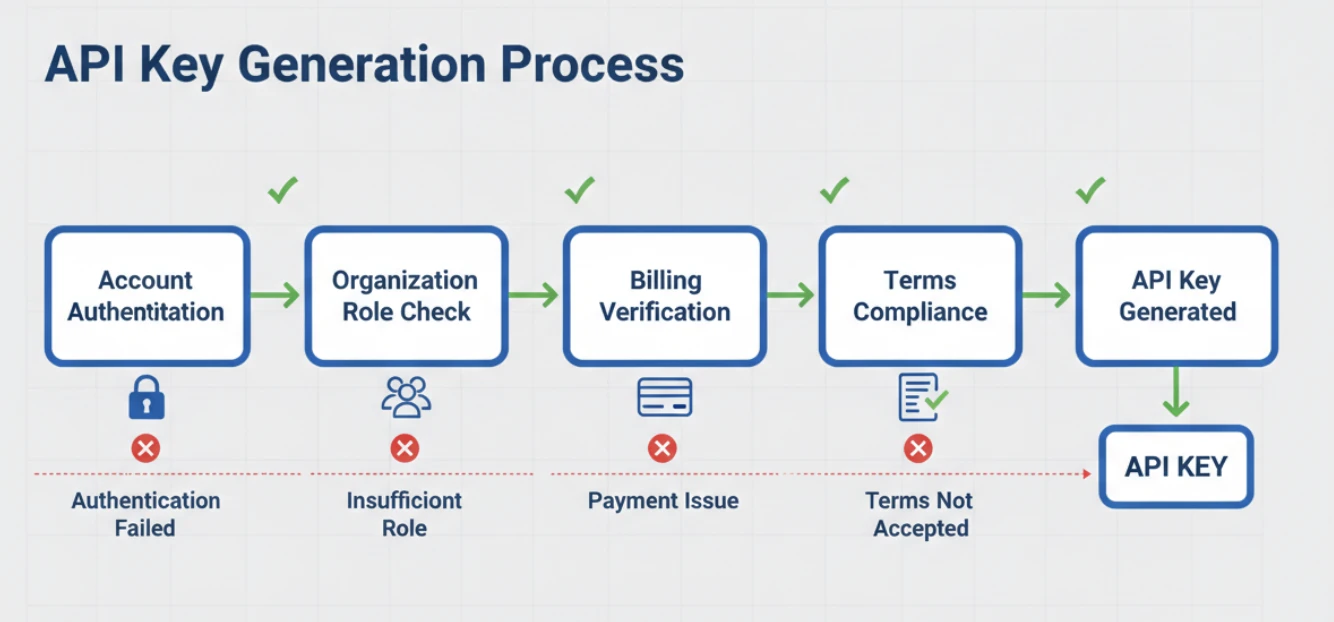
Why “Failed to Generate API Key: Permission Denied” Error Happens (The Real Reasons)
1. Insufficient Account Permissions
This is the number one culprit, especially in organizational settings. You might be logged into the platform just fine, but your account lacks the specific permissions needed to generate API keys.
In Google AI Studio (formerly Bard API/Gemini API), for instance, you need to have the “Service Usage Consumer” role at minimum. If you’re part of a Google Cloud organization, your workspace admin might have restricted API access without you even knowing it.
I once spent two hours troubleshooting this for a client, only to discover their IT department had locked down all API key generation capabilities org-wide after a minor security incident. One quick email to IT, and we were back in business.
2. Geographical or Service Availability Restrictions
Not all API services are available in all regions. Google AI Studio, for example, has had rolling availability, it might be fully available in the US but limited in certain European or Asian countries.
If you’re accessing the service from a restricted region, or if your Google Cloud project is set to a region where the API isn’t available, you’ll hit this permission wall. The error message won’t always tell you this explicitly, which makes it particularly annoying to diagnose.
3. Billing and Payment Issues
Many modern API platforms require valid payment information before allowing key generation, even if they offer a free tier. This is especially common with Google Cloud, AWS, Azure, and similar enterprise-focused platforms.
You might think, “But I’m just using the free tier!” Doesn’t matter. The platform wants a credit card on file as a verification method and to prevent abuse. No payment method = no API key.
4. Account Status Problems
Your account might be flagged, suspended, or in some kind of provisional status. This can happen if you violated terms of service on a previous project, if there’s suspicious activity detected, or if you haven’t completed required verification steps like email confirmation or phone verification.
5. Organization and Project Configuration
In platforms like Google Cloud, your project might not have the necessary APIs enabled, or your organization’s policies might be blocking key generation. Sometimes you need to explicitly enable the specific API service within your project before you can generate keys for it.
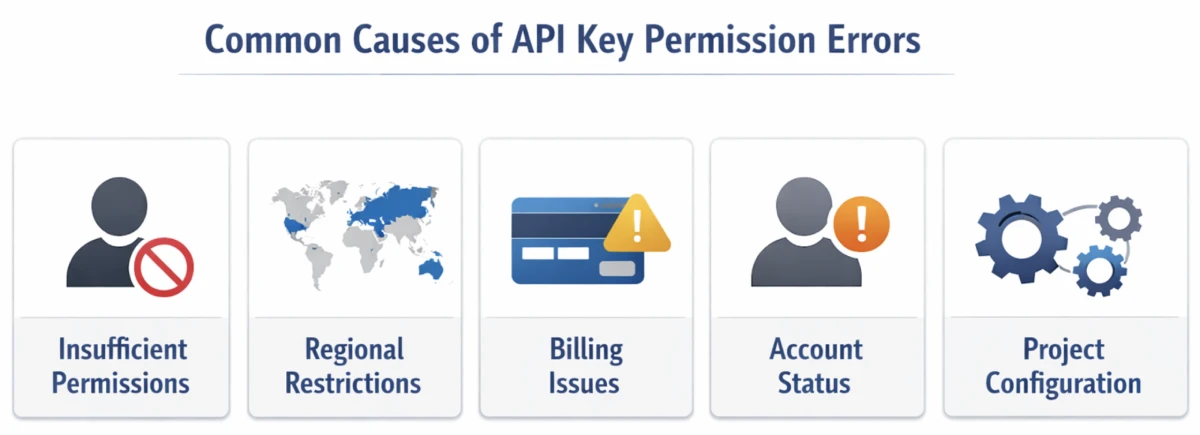
Step-by-Step Solutions (Tested and Proven)
Let me walk you through the systematic approach I use to resolve this “Failed to Generate API Key: Permission Denied Please try again” error. Start from the top and work your way down, most issues get resolved in the first few steps.
Solution 1: Verify Your Account Permissions and Role
First things first, check what permissions your account actually has.
For Google AI Studio / Google Cloud:
- Navigate to the Google Cloud Console at console.cloud.google.com
- Select your project from the dropdown at the top
- Go to “IAM & Admin” > “IAM” in the left sidebar
- Find your account in the list and check your roles
- You need at least one of these roles: Owner, Editor, or a custom role with “serviceusage.services.use” permission
If you don’t see your account with appropriate permissions, you’ll need to contact your organization administrator. If you’re the admin, you can grant yourself the necessary roles directly from this screen.
For OpenAI:
- Go to your OpenAI account settings
- Check your organization membership under the “Organizations” tab
- Verify that you’re listed as an Owner or Member with API access
- If you’re in multiple organizations, make sure you’re operating within the correct one
For AWS:
- Open the IAM console in your AWS Management Console
- Check your user permissions or the groups you belong to
- You need the “iam:CreateAccessKey” permission specifically
- Look for any deny policies that might be overriding your permissions
Pro tip: If you’re in a corporate environment, don’t waste hours troubleshooting permissions you can’t change. Send a well-crafted email to your admin explaining what you need and why. Include the specific permission names, it makes their job easier and you’ll get unblocked faster.
Solution 2: Check Service Availability in Your Region
For Google services, visit the Google AI Studio availability page and confirm your region is supported. If you’re using a VPN, try disconnecting it, sometimes VPN IP addresses get flagged or show you as being in a different region than you actually are.
For your Google Cloud project specifically:
- Go to your project settings in Google Cloud Console
- Check the project’s default region under “Project Info”
- Try creating a new project with a supported region if yours isn’t compatible
- You can have multiple projects, so this won’t affect your existing work
Solution 3: Add or Verify Billing Information
Even if you’re planning to stay within free tier limits, most enterprise API platforms require payment details.
Adding billing to Google Cloud:
- Go to “Billing” in the Google Cloud Console navigation menu
- Click “Link a billing account” or “Add billing account”
- Enter your payment information (yes, even for free tier usage)
- Make sure the billing account is linked to your specific project
One thing that catches people off guard: you can have multiple Google Cloud projects, and billing needs to be set up for each one individually. Just because Project A has billing doesn’t mean Project B automatically inherits it.
For OpenAI:
- Navigate to Settings > Billing in your OpenAI dashboard
- Add a payment method under “Payment methods”
- Set up usage limits if you’re concerned about unexpected charges
- Note that OpenAI often requires at least a $5 initial credit purchase
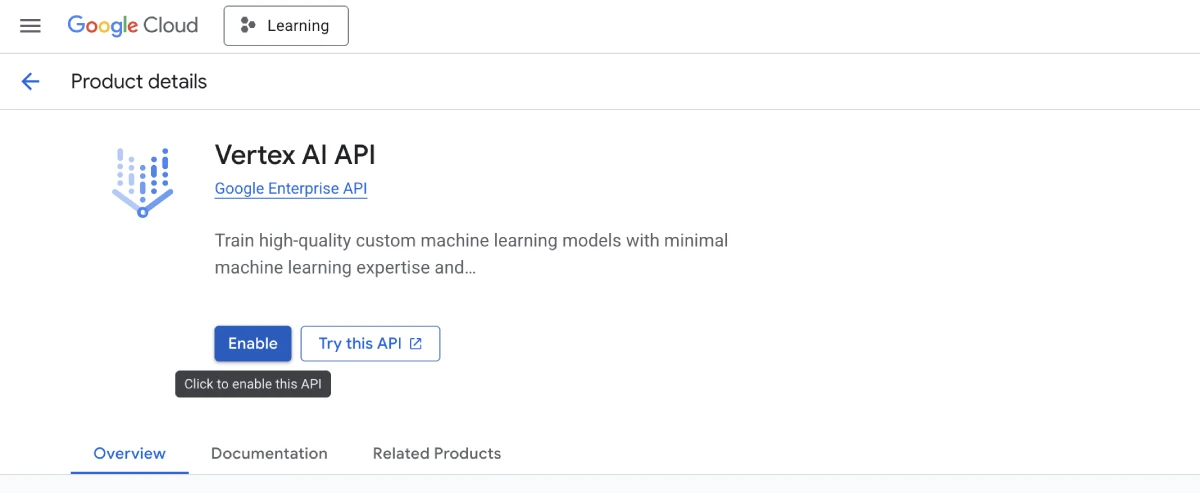
Solution 4: Enable the Required API Services
This is particularly relevant for Google Cloud and AWS, where services need to be explicitly enabled before use.
In Google Cloud:
- Open the “APIs & Services” > “Library” section
- Search for the specific API you need (e.g., “Generative AI API” or “Vertex AI API”)
- Click on it and hit the “Enable” button
- Wait for the service to activate (usually takes 30-60 seconds)
- Now try generating your API key again
Sometimes you need to enable multiple related services. For Google AI Studio, you might need to enable both the Generative Language API and the AI Platform API.
Solution 5: Clear Your Browser Cache and Try a Different Browser
Yes, I know this sounds like generic tech support advice, but hear me out. Modern developer consoles are complex web applications with lots of cached state, authentication tokens, and session data.
I’ve personally encountered situations where stale authentication cookies were causing permission checks to fail silently. After clearing cache and cookies (or just switching to an incognito window), the problem disappeared.
Quick test: Open an incognito/private browsing window, log in fresh, and try generating the API key. If it works there, you know it’s a caching issue.
Solution 6: Check for Account Verification Requirements
Some platforms require additional verification steps before allowing API access, especially for newer accounts. Look for:
- Unverified email addresses (check your spam folder for verification emails)
- Required phone verification
- Pending identity verification steps
- Uncompleted terms of service agreements
For Google specifically, they sometimes require phone verification for new accounts or accounts that have been inactive for a while. You’ll usually see a notification about this in your account settings if it’s required.
Solution 7: Wait and Retry (For New Accounts)
I hate giving this advice, but sometimes it’s reality. If you just created your account, some platforms impose a waiting period before you can generate API keys. This is an anti-abuse measure.
Google AI Studio, for instance, has had reports of requiring 24-48 hours for newly created accounts to gain full API access. If you’re certain everything else is configured correctly, give it a day and try again.
Solution 8: Contact Support with Specific Information
If you’ve tried everything above and you’re still stuck, it’s time to contact platform support. But do it strategically, a well-documented support request gets resolved much faster than “it’s not working, please help.”
Include in your support request:
- Your exact account email or ID
- The specific error message (screenshot it)
- Your project ID or organization ID
- Steps you’ve already taken to troubleshoot
- Timestamp of when you’re seeing the error
- Browser and operating system you’re using
For Google issues, you can post in the official Google AI Studio community forum where Googlers often respond. For other platforms, use their official support channels rather than general forums, you’ll get better results.
What to Do If Nothing Works
Okay, you’ve tried everything in this guide, you’ve contacted support, and you’re still getting permission denied. What now?
First, consider whether you actually need an API key right now, or if there’s an alternative approach. Some platforms offer OAuth authentication instead of API keys, which might have different permission requirements. Others have SDKs with built-in authentication flows that bypass manual key generation.
Second, check if there’s a sandbox or development environment you can use while waiting for production access. Many platforms offer limited-feature test environments that don’t require the same permission levels.
Third, look for community-maintained alternatives or wrappers. For Google AI Studio, for instance, there are unofficial libraries that might use different authentication methods. (Be cautious with these for production use, but they’re fine for learning and experimentation.)
Finally, if you’re truly blocked and it’s urgent, consider creating a completely fresh account from scratch. Use a different email address, set up billing immediately, and make sure you’re operating in a supported region. Sometimes starting clean is faster than debugging a problematic account.
Wrapping Up
The “failed to generate API key: permission denied please try again” error is frustrating because it’s vague and can have many causes. But as we’ve covered, it almost always comes down to one of a few common issues: insufficient account permissions, missing billing information, regional restrictions, or account verification requirements.
I’ve dealt with this error across dozens of different platforms over the years, and with the right approach, it’s almost always solvable within an hour or two. The key is being methodical and not assuming the error message is telling you the whole story.

About troubleshooting API integration issues: If you found this guide helpful and want to learn more about API authentication, error handling, and integration best practices, check out our other tutorials on here. We cover everything from REST API fundamentals to advanced authentication flows and rate limiting strategies.

![How to Create Claude WordPress MCP Server [100% Working]](https://apibuddy.net/wp-content/uploads/2026/01/How-to-Create-Claude-WordPress-MCP-Server-10-Steps.webp)

I?¦ll immediately grab your rss as I can not to find your email subscription hyperlink or newsletter service. Do you have any? Please let me recognize in order that I could subscribe. Thanks.